HighLevel integration
The HighLevel integration logs every call you make or take in CallForges on the matching contact in a HighLevel sub-account. The call goes into the contact's conversation with a note holding its details, or is written as a note alone. It also lets you browse your HighLevel contacts inside CallForges and import them as contacts to call.
 Written by CallForges Support · Updated 7 November 2026
Before you start
- You need a CallForges owner or admin role to connect, configure or disconnect HighLevel. Other users don't see the integration settings, but their calls are logged once they are mapped.
- You need a HighLevel login that can open the sub-account you want to connect.
- One CallForges workspace connects to one HighLevel sub-account (also called a business account). An agency with several sub-accounts connects each one from its own CallForges workspace.
Connect HighLevel
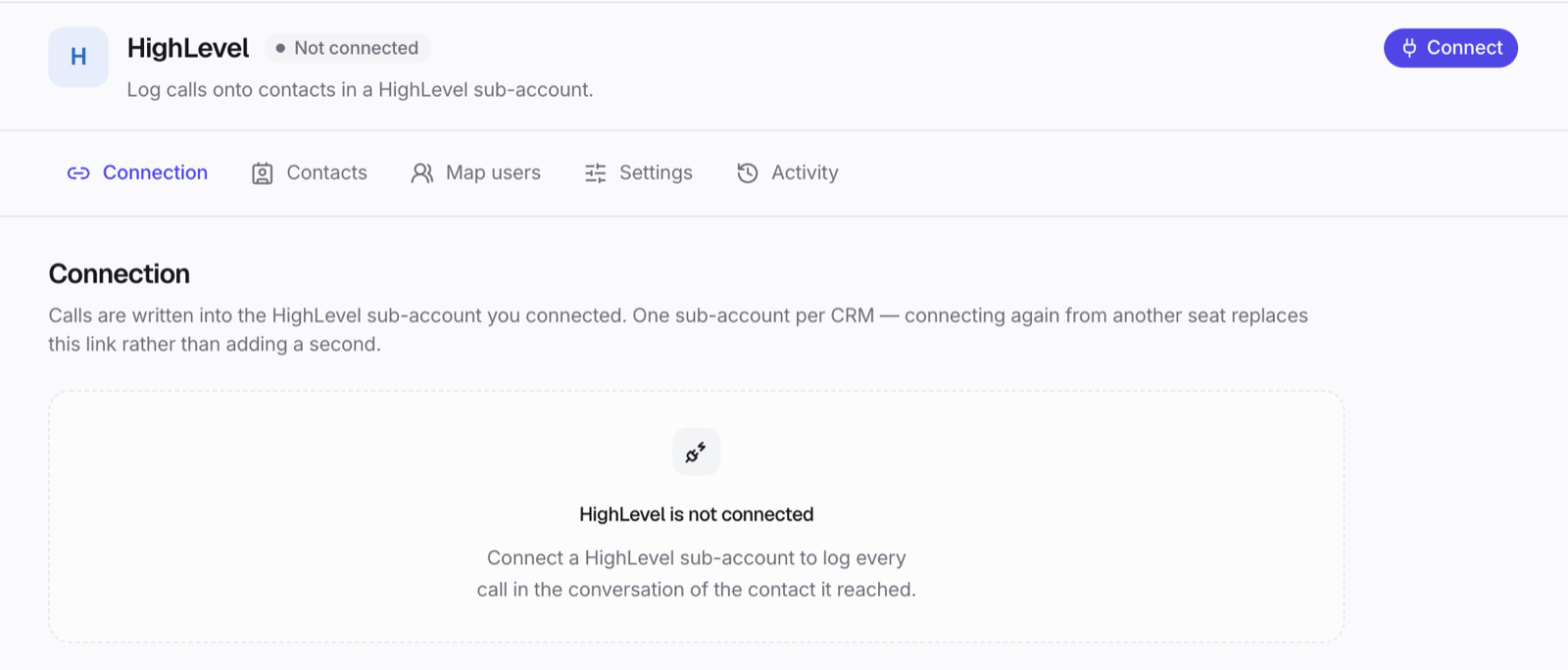
- In CallForges, open Integrations and choose HighLevel.
- Click Connect, then Continue to HighLevel. HighLevel opens.
- Sign in to HighLevel if asked, choose the sub-account and approve the permissions.
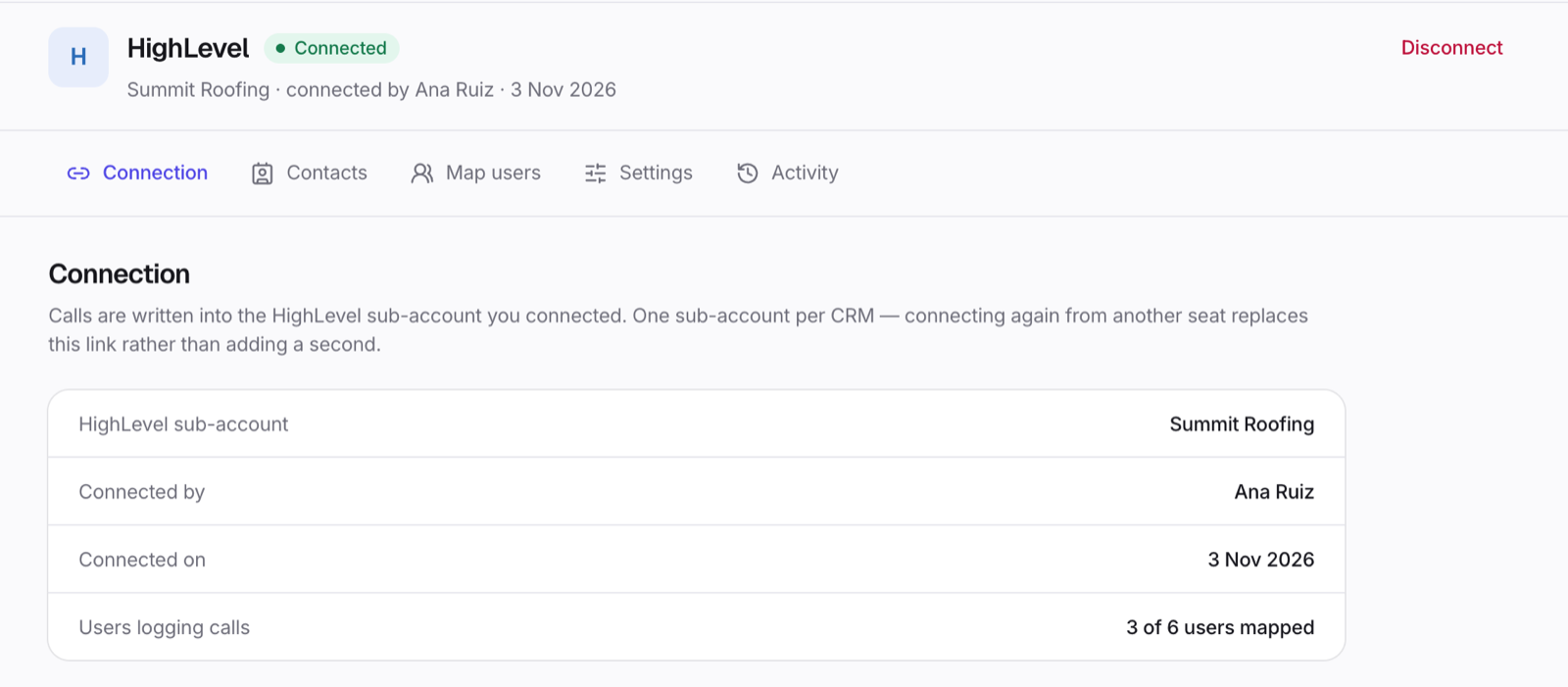
- You come back to the Connection tab, which shows the sub-account, who connected it and when.
If the sub-account is already connected to another CallForges workspace, CallForges asks before moving it. That other workspace then stops logging calls to HighLevel. If you connect a different sub-account to this workspace, CallForges asks you to confirm the switch.
If HighLevel later asks CallForges to sign in again (for example, after the app was uninstalled in HighLevel), the Connection tab shows Reconnect. Calls made in the meantime wait and are sent once you reconnect.
Agency logins and installs from HighLevel
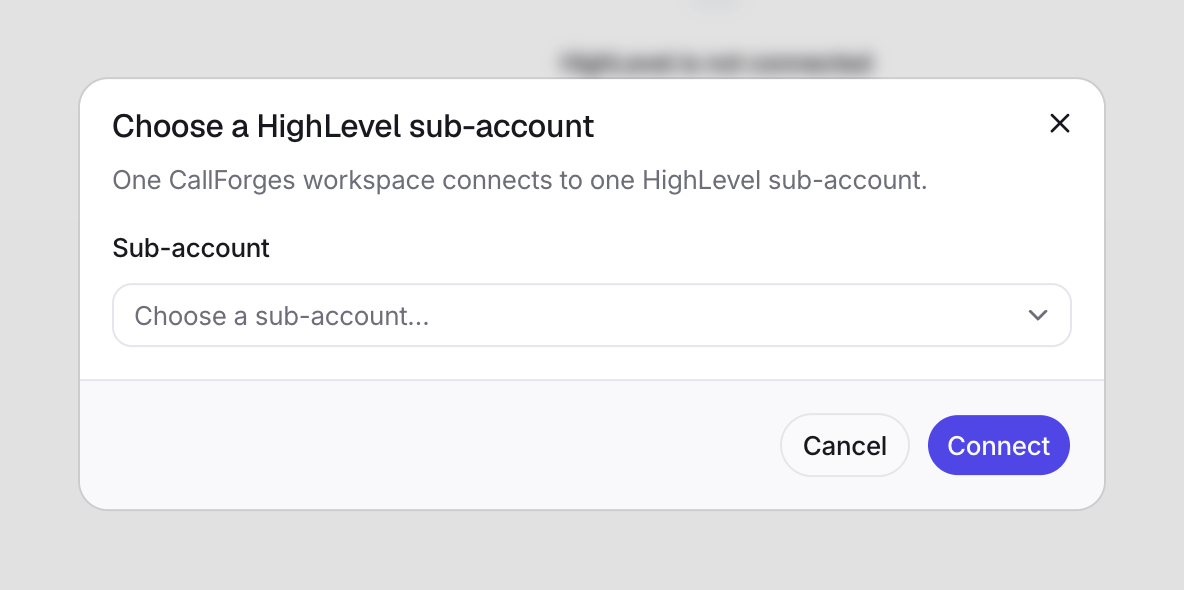
If you sign in with an agency login
CallForges asks which sub-account to connect. Pick one under Sub-account, searching by name if the list is long, and click Connect. Only that sub-account is connected, never the rest of the agency.
If you start the install from HighLevel
With an agency login, install from Agency View:
- Click Install, then Proceed to Install.
- At Select Sub-Account, choose the sub-account and click Continue.
- Click Allow & install.
The Install button in Sub-Account View does nothing. The agency also needs at least one sub-account first: without one, Proceed to Install does nothing.
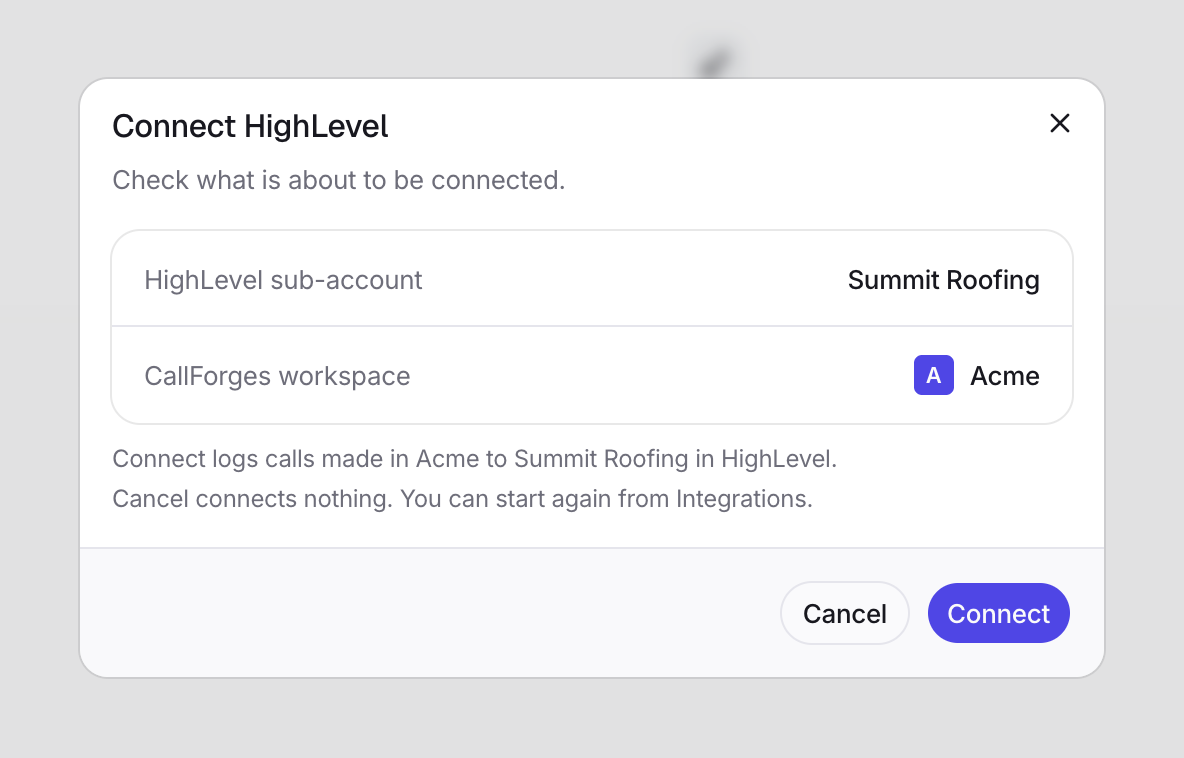
HighLevel then sends you to CallForges. Sign in if asked. CallForges shows what is about to be connected: the HighLevel sub-account and the CallForges workspace you have open.
- Nothing is connected until you click Connect.
- If you belong to several workspaces, click Switch to connect a different one.
- Cancel connects nothing. You can start again from Integrations.
Map users
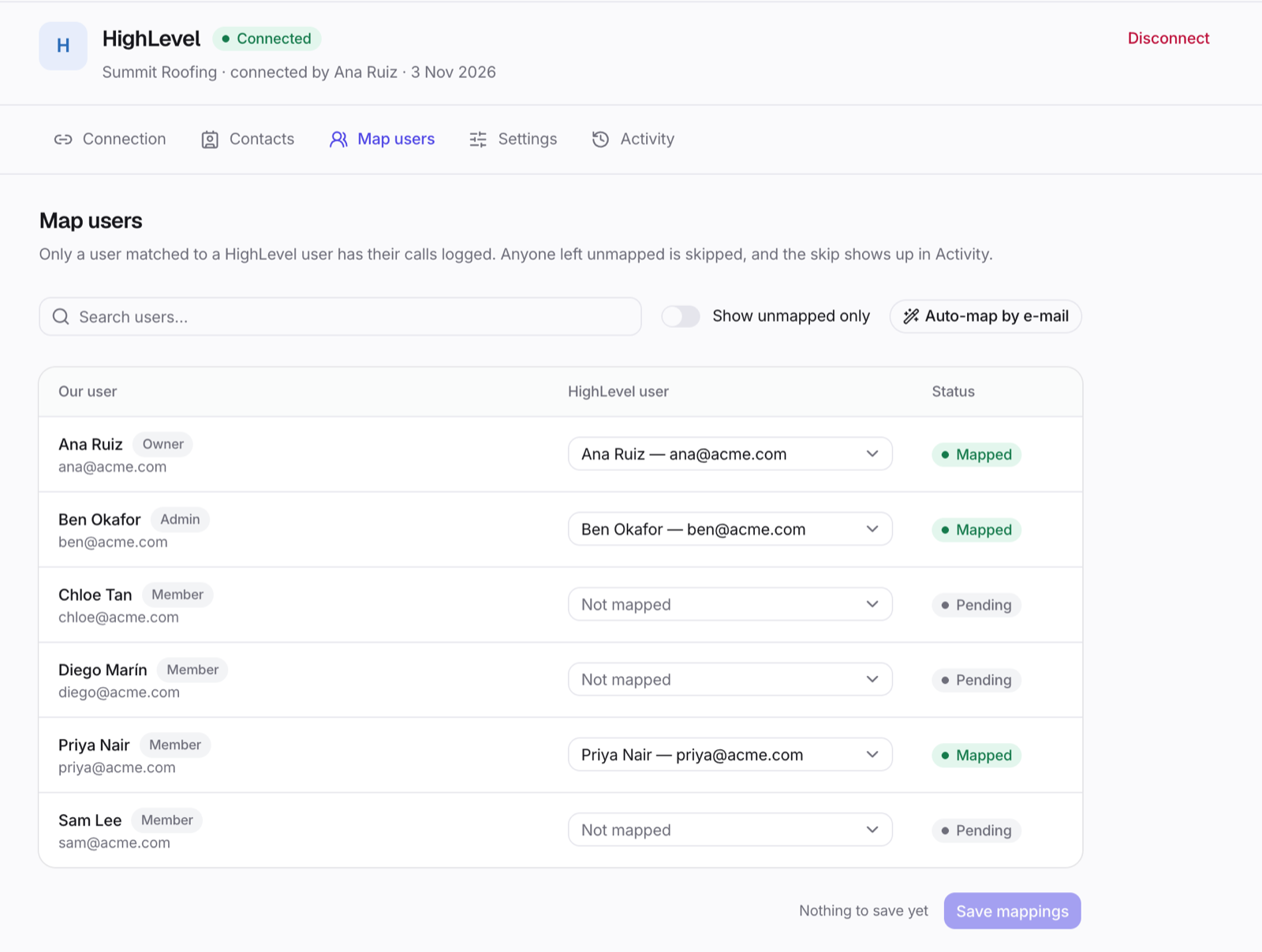
Calls are logged only for CallForges users who are matched to a HighLevel user. Open the Map users tab:
- Click Auto-map by e-mail to match every user whose e-mail address is the same in both products.
- For anyone left, choose their HighLevel user from the list, or leave them on Not mapped.
- Click Save mappings.
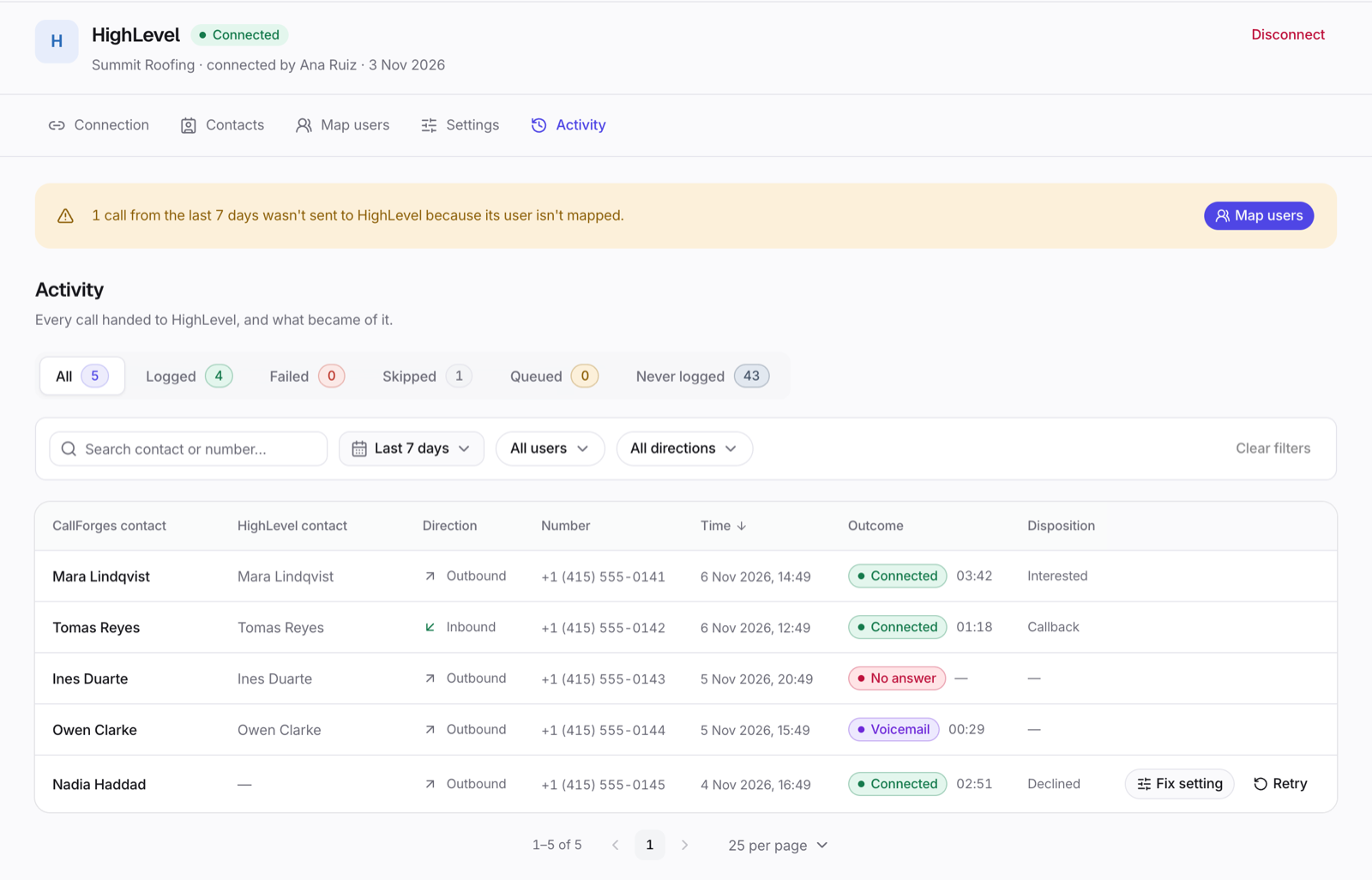
Calls by an unmapped user are skipped, and each skip shows up in Activity with the reason. Use Show unmapped only to find the users who still need a match. After you map them, you can send their skipped calls from Activity.
Call logging settings
Open the Settings tab, change what you need and click Save changes.
Workflow: what each call becomes
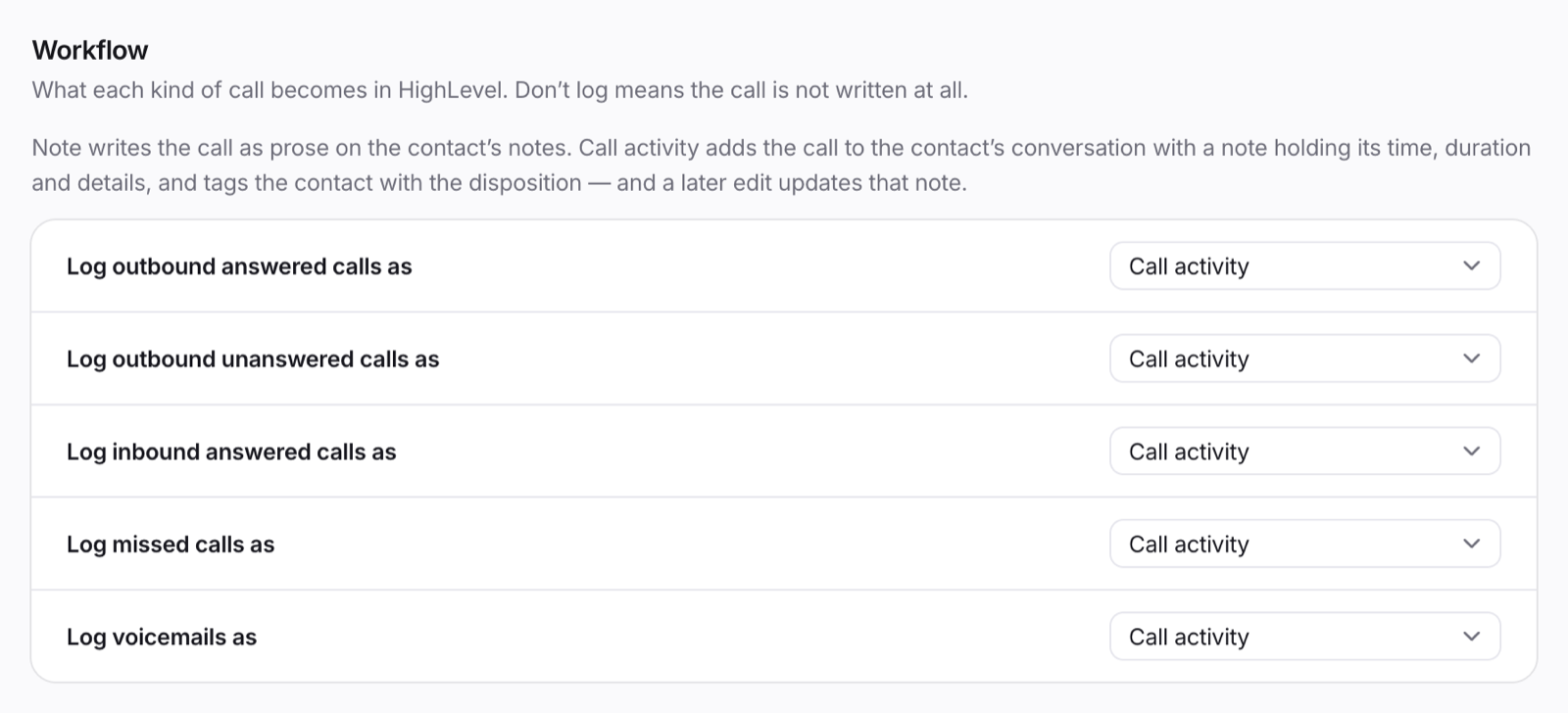
Choose separately for outbound answered calls, outbound unanswered calls, inbound answered calls, missed calls and voicemails:
| Option | What is written in HighLevel |
|---|---|
| Call activity | The call is added to the contact's conversation, with a note holding its time, duration, outcome, disposition and call notes. The contact is tagged with the disposition and the call's outcome. If HighLevel refuses the conversation entry, the call is still saved as a note on the contact. |
| Note | A note on the contact with the same details written as text. Nothing is added to the conversation, and no tag is added. |
| Don't log | Nothing. The call is not written to HighLevel. |
The call itself happens in CallForges, so these calls may not appear in HighLevel's own call reports.
Disposition tags
With Call activity, a call that has a disposition tags the contact with it. If the disposition changes later, CallForges replaces the tag it added with the new one. If the disposition is cleared, CallForges removes the tag it added.
CallForges only ever removes a tag it added itself. A tag the contact already had, and every other tag on the contact, is never touched.
What each logged call includes
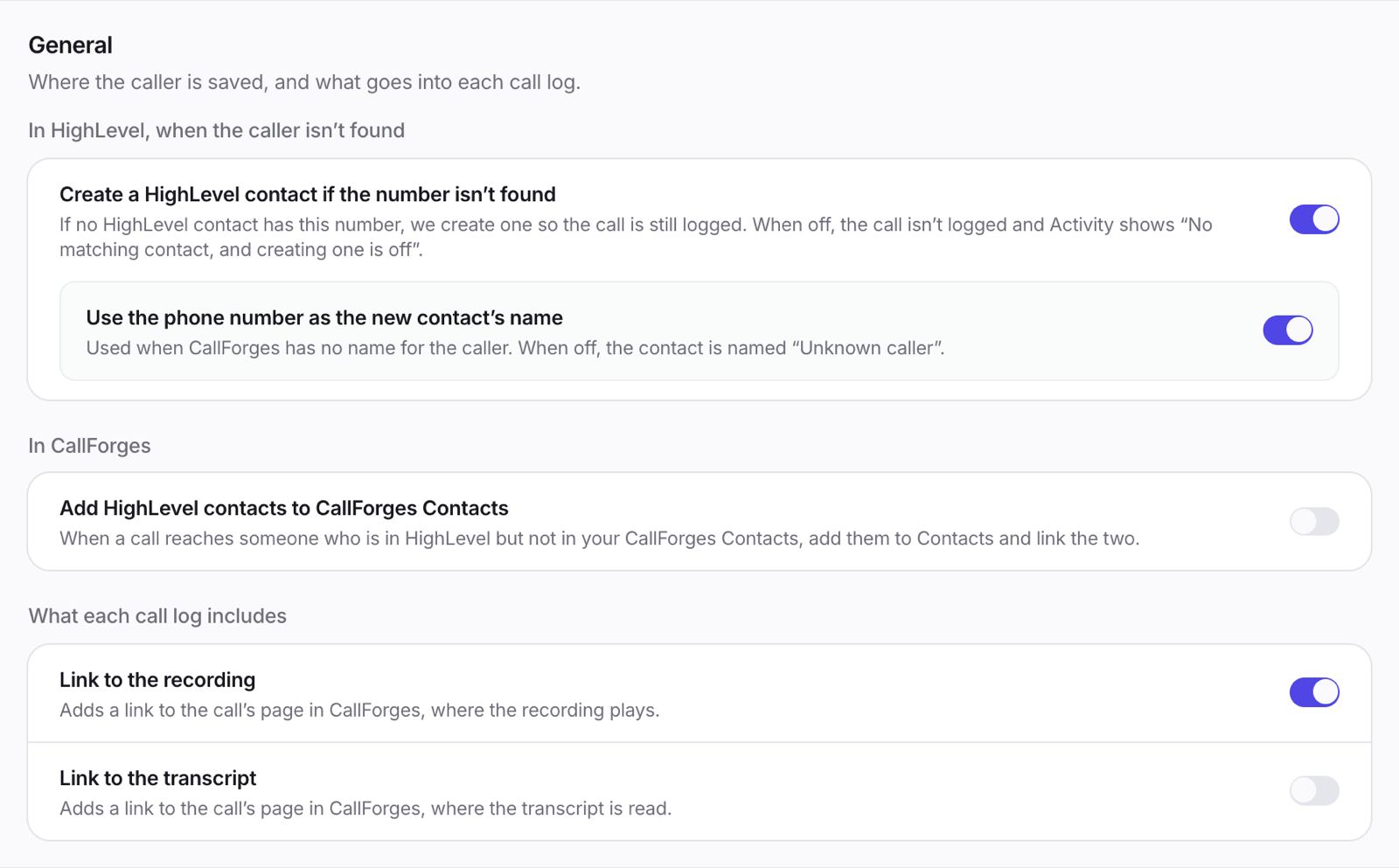
- Link to the recording adds a link to the call's page in CallForges, where the recording plays.
- Link to the transcript adds a link to the call's page in CallForges, where the transcript is read.
- AI summary adds the call's AI summary, when it has one. Summaries are made for English calls long enough to summarise, on plans that include them.
- Save the recording in HighLevel attaches the recording to the call's entry in the conversation. It's off by default and works only while Secured recording links is off in Settings → Call settings. The attachment uses a share link that stops working after a time; the link to the call's page keeps working.
Transcripts stay in CallForges, and so do recordings unless you turn on Save the recording in HighLevel. Only signed-in users of your CallForges workspace can open the links.
Connected numbers
Leave Log calls on all numbers on to log calls on every number your workspace owns, including numbers bought later. Turn it off to pick the numbers to log. Calls on numbers that aren't picked are skipped.
When calls are logged
A call is written to HighLevel within a few minutes of ending, so the disposition and notes the user adds after the call are included. If the call is changed later, for example a new disposition, the same note is updated. The entry in the conversation stays as it was.
Outcome tags
With Call activity, every logged call tags the contact with its outcome: callforges-answered, callforges-no-answer, callforges-missed, callforges-busy, callforges-failed, callforges-cancelled or callforges-voicemail. Use these tags to start a HighLevel workflow, for example a text after a missed call.
CallForges never takes an outcome tag away for good, so a contact can hold several. If the contact already holds the tag from an earlier call, CallForges removes it and adds it again for the new call.
Follow-up tasks and the last outcome
Turn these on in Settings. Both are off by default.
- Add a follow-up task on a missed call: each missed call or voicemail logged as Call activity gets one task to call back, due a day later and assigned to the mapped HighLevel user.
- Save the last outcome on the contact: each call logged as Call activity fills a Last call outcome field on the contact with its outcome. CallForges creates the field the first time it needs it.
Connections made before this feature need to reconnect to fill the field. The call is logged either way.
The caller's name when a call rings
When someone who isn't in your CallForges Contacts calls one of your numbers, CallForges looks the number up in HighLevel while the call rings, and the name appears on the ring card a moment later.
The ring never waits for the answer. If HighLevel is slow or busy, or several contacts share the number, the card shows the number alone. A contact saved in CallForges always comes first. CallForges keeps the answer in memory for a few minutes and doesn't save it.
Unknown numbers
CallForges finds the HighLevel contact by phone number, including a contact's additional phone numbers. In Settings → General:
- Create a HighLevel contact if the number isn't found: when no contact in HighLevel has the number, CallForges creates one so the call is still logged. This is on by default. When it is off, the call isn't logged and Activity shows that the contact wasn't found.
- Use the phone number as the new contact's name: used when CallForges has no name for the caller. When this is off, the new contact is named "Unknown caller". This applies only while creating contacts is on.
- Add HighLevel contacts to CallForges Contacts: when a call reaches someone who is in HighLevel but not in your CallForges Contacts, CallForges adds them to Contacts and links the two. Off by default.
If HighLevel refuses a new contact, for example because the sub-account doesn't allow duplicates, Activity shows the reason.
Import contacts
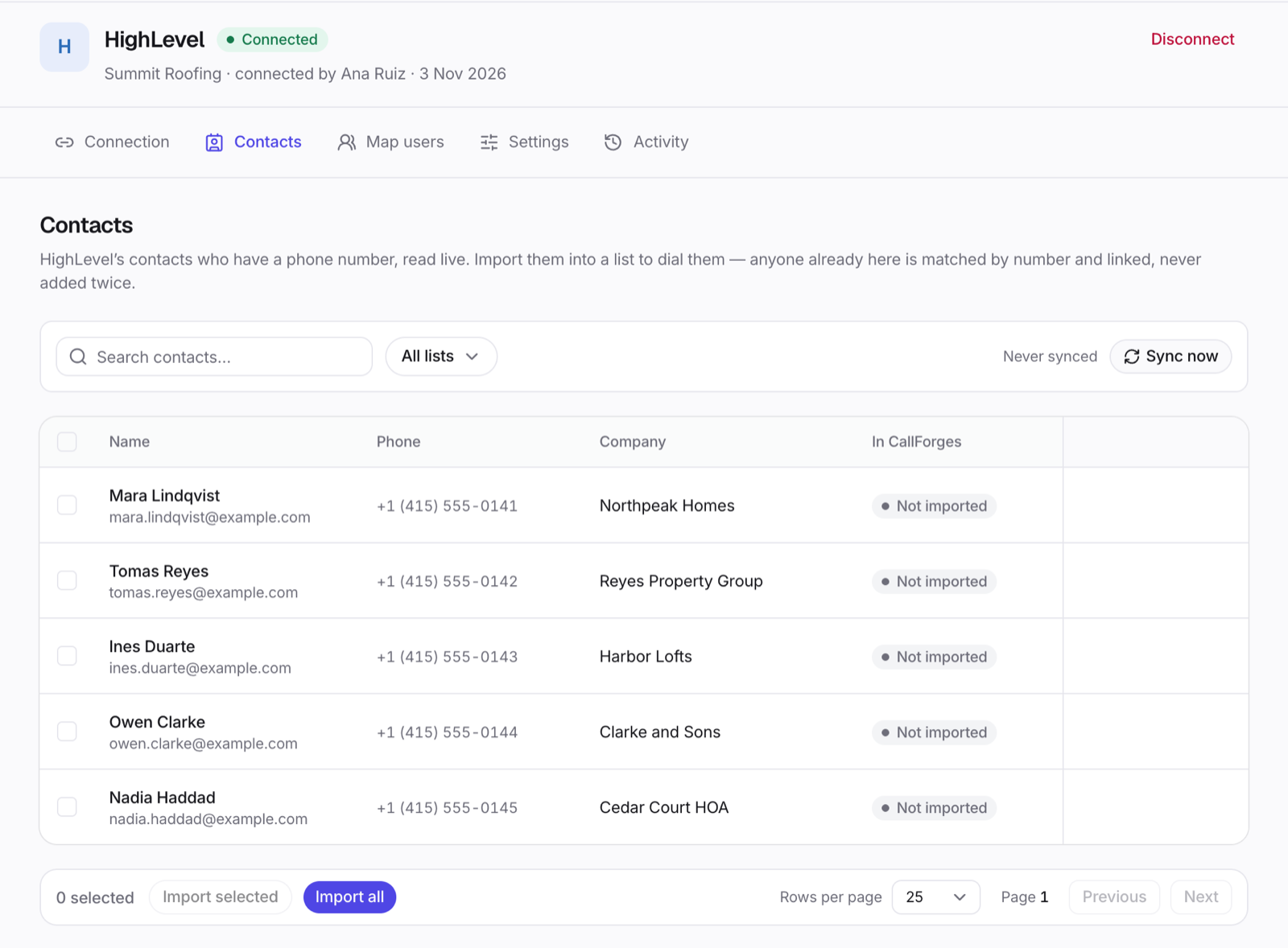
The Contacts tab lists the contacts in your HighLevel sub-account who have a phone number, read live from HighLevel. Each row shows the contact's company and whether they are already in CallForges.
- Search, or filter by a HighLevel tag with All lists. Smart Lists aren't available here.
- Select contacts, or import everyone in the chosen tag.
- Click Import selected or Import all, and choose an existing CallForges list or name a new one.
Imported contacts become CallForges contacts linked to their HighLevel records, ready to call from a campaign or the dialer. Click Sync now to bring in later changes. CallForges doesn't copy your HighLevel data on a schedule; it reads HighLevel only when you open the tab, import or sync.
Log past calls
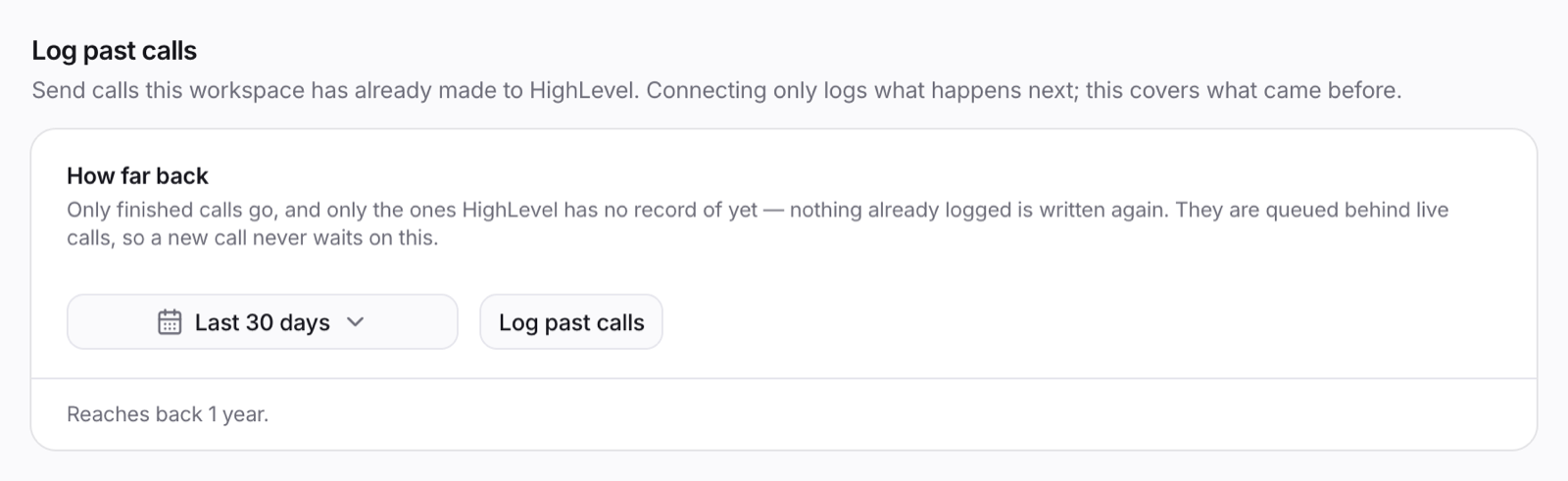
Connecting logs the calls that happen from then on. To send calls your workspace made before you connected, use Settings → Log past calls:
- Under How far back, pick a date range. It reaches back up to 1 year.
- Click Log past calls. CallForges counts the calls first and shows how many would be logged, and which users' calls would be skipped because they aren't mapped.
- Confirm. A progress bar shows the calls being sent.
Past calls are sent in the background and never delay the logging of new calls. To stop a run, open Activity, go to the Queued tab and click Stop queued.
Activity
The Activity tab lists every call and what happened to it in HighLevel: logged, queued, failed or skipped, with the reason. You can retry one call, or use Retry all for every failed or skipped call that matches your filters. Never logged lists calls that were never sent to HighLevel.
If HighLevel's limits are reached or HighLevel can't be reached, CallForges pauses and sends the waiting calls once HighLevel accepts requests again. Nothing is lost.
If HighLevel says the sub-account isn't active, the page shows Paused — account inactive. CallForges keeps retrying by itself and you don't need to reconnect. Nothing is lost.
Disconnect
- Open Integrations → HighLevel.
- Click Disconnect and confirm.
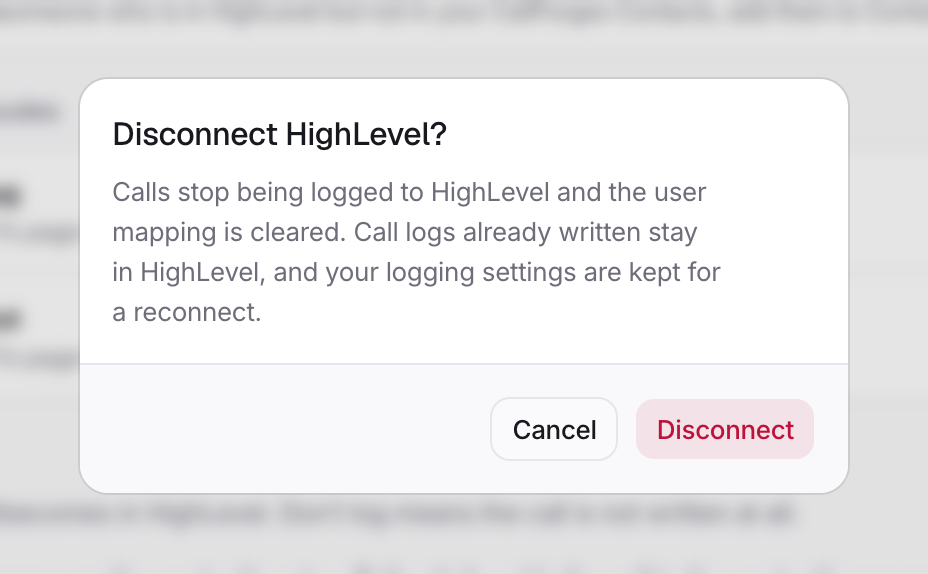
Calls stop being logged to HighLevel and the user mapping is cleared. CallForges uninstalls itself from this sub-account only, never from the agency or its other sub-accounts. Call logs already written stay in HighLevel, and your logging settings are kept in case you reconnect.
If HighLevel doesn't confirm the removal, CallForges shows Disconnected here, but HighLevel did not confirm it and asks you to remove CallForges' access in HighLevel's settings too.
You can also uninstall the app from HighLevel at any time. CallForges then shows Reconnect.
What CallForges can access
When you connect, CallForges asks HighLevel for these permissions on your sub-account:
| Permission | Why |
|---|---|
contacts.readonly | Find the contact by phone number and list contacts in the Contacts tab. |
contacts.write | Write notes and tags on contacts, and create a contact for an unknown number when that setting is on. |
conversations.readonly, conversations.write, conversations/message.write | Add the call to the contact's conversation. |
users.readonly | List HighLevel users for Map users and Auto-map by e-mail. |
locations.readonly | Identify the sub-account you connected. |
locations/tags.readonly | Show your tags in the Contacts tab's filter. |
locations/customFields.readonly, locations/customFields.write | Create and fill the Last call outcome field. |
oauth.write | Remove CallForges from the sub-account when you disconnect, and connect the sub-account you pick after an agency login. |
oauth.readonly | List an agency's sub-accounts so you can pick one. |
Your HighLevel access is stored encrypted and used only for the features above. See our Privacy Policy.