Attio integration
The Attio integration logs every call you make or take in CallForges onto the matching person in Attio, as a note or as a record of a Calls object. It also lets you browse your Attio people inside CallForges and import them as contacts to call.
 Written by CallForges Support · Updated 22 October 2026
Before you start
- You need a CallForges owner or admin role to connect, configure or disconnect Attio. Other users don't see the integration settings, but their calls are logged once they are mapped.
- You need access to the Attio workspace you want to connect, with permission to install apps.
- One CallForges workspace connects to one Attio workspace.
Connect Attio
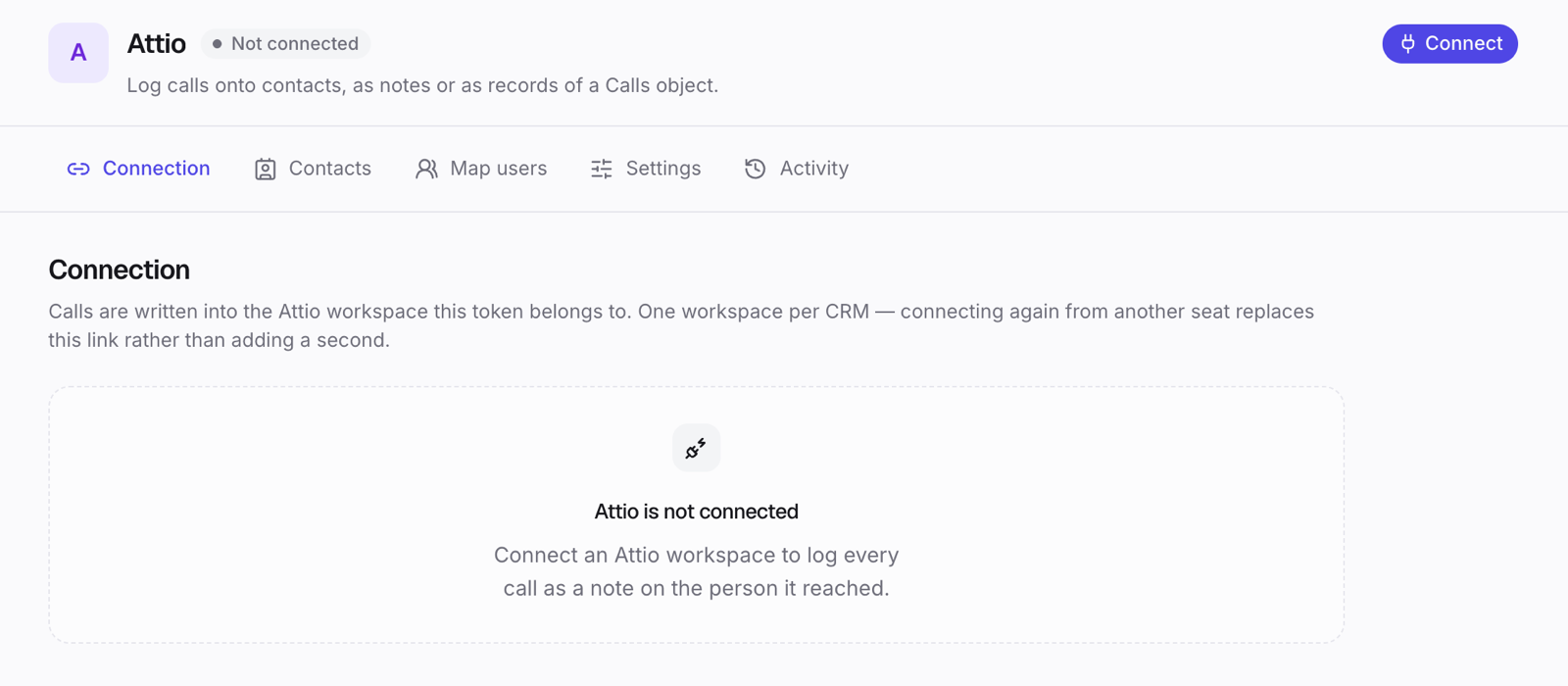
- In CallForges, open Integrations and choose Attio.
- Click Connect. Attio opens in the same tab.
- Sign in to Attio if asked, pick the Attio workspace, and click Allow.
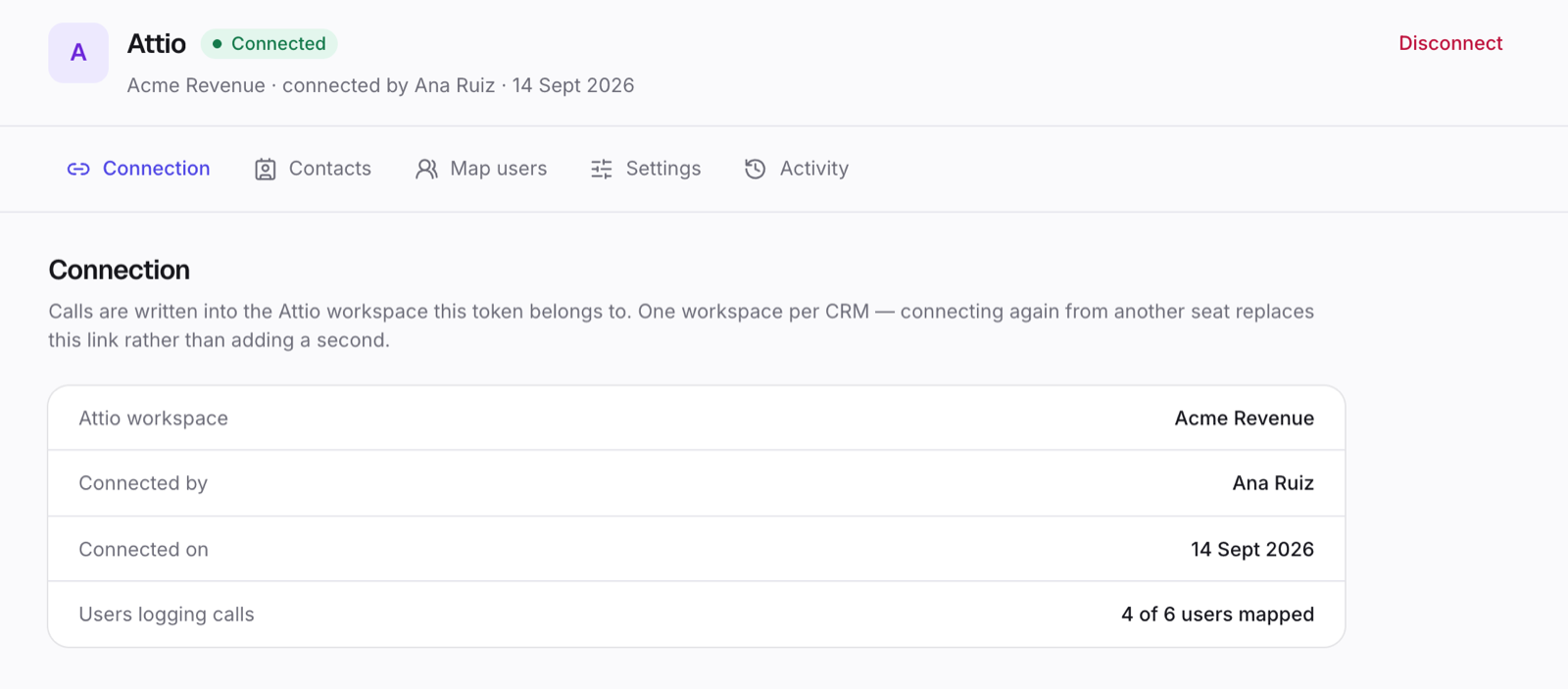
- You come back to the Connection tab, which shows the Attio workspace, who connected it and when.
If the Attio workspace is already connected to another CallForges workspace, CallForges asks before moving it. That other workspace then stops logging calls to Attio.
If Attio later asks CallForges to sign in again (for example, after the app was removed in Attio), the Connection tab shows Reconnect. Calls made in the meantime wait and are sent once you reconnect.
Map users
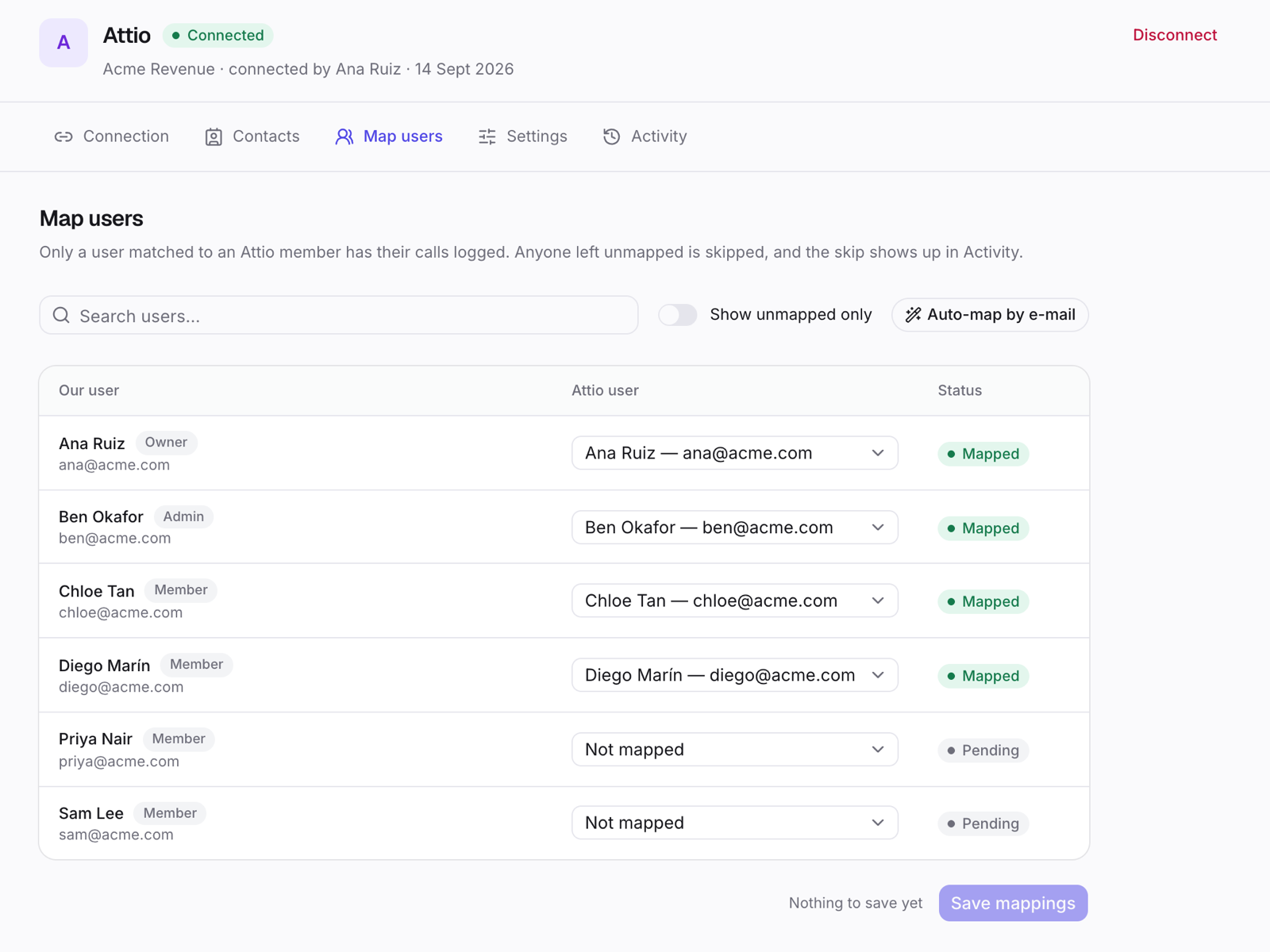
Calls are logged only for CallForges users who are matched to an Attio workspace member. Open the Map users tab:
- Click Auto-map by e-mail to match every user whose e-mail address is the same in both products.
- For anyone left, choose their Attio member from the list, or leave them on Not mapped.
- Click Save.
Calls by an unmapped user are skipped, and each skip shows up in Activity with the reason. Use Show unmapped only to find the users who still need a match. After you map them, you can send their skipped calls from Activity.
Call logging settings
Open the Settings tab, change what you need and click Save changes.
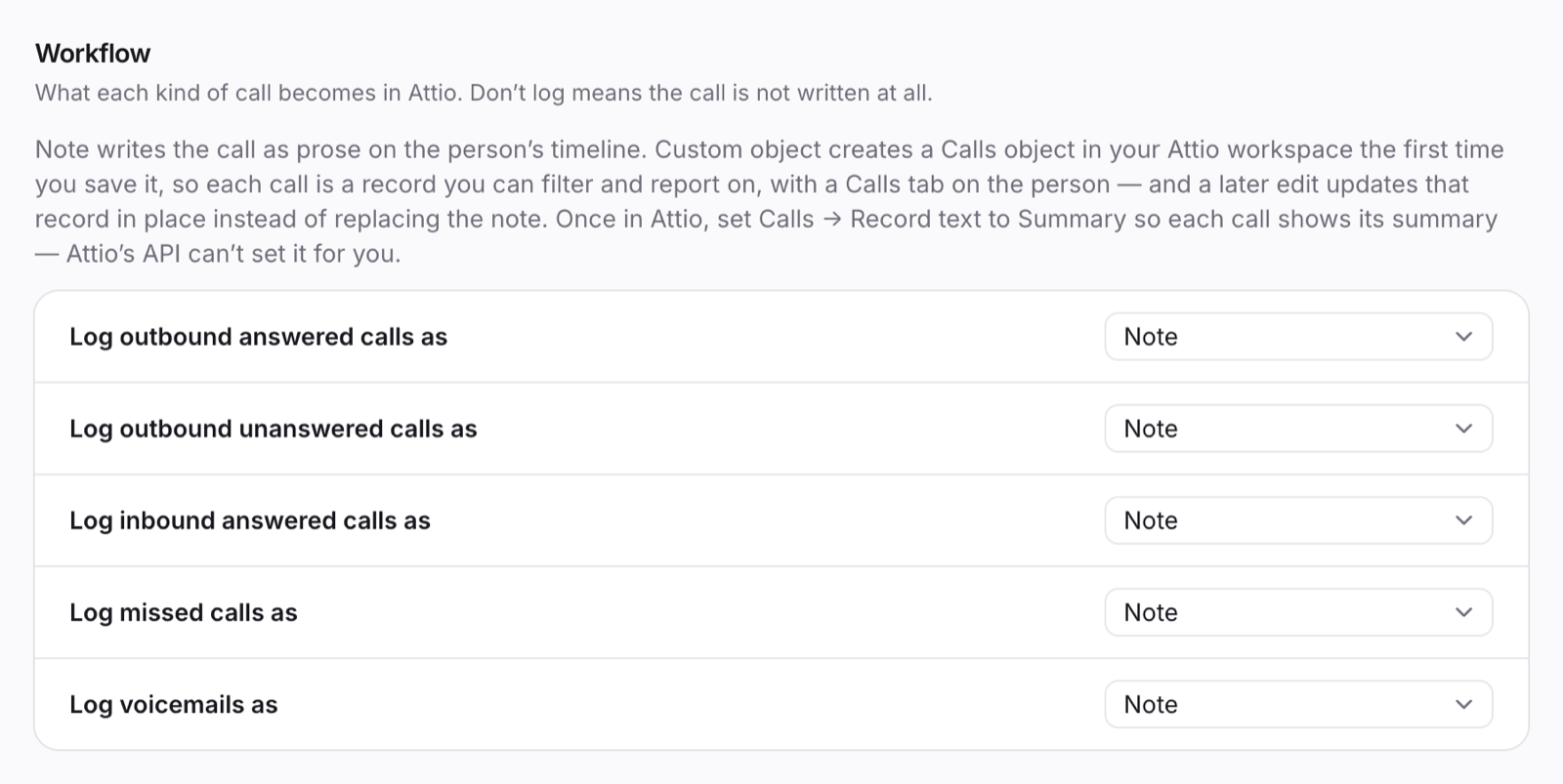
Workflow: what each call becomes
Choose separately for outbound answered calls, outbound unanswered calls, inbound answered calls, missed calls and voicemails:
| Option | What is written in Attio |
|---|---|
| Note | A note on the person's record with the direction, outcome, talk time, the user who made or took the call, the disposition and the call notes. |
| Custom object | A record in a Calls object, linked to the person, with Summary, Direction, Outcome, Disposition, Notes, Duration, From, To, Agent, Recording and Transcript attributes. CallForges creates the Calls object in your Attio workspace the first time you save this option. Nothing is created in Attio until then. |
| Don't log | Nothing. The call is not written to Attio. |
Name your Calls records (once). Attio's API can't choose which attribute names a record, so new Calls records show their record ID until you set it. In Attio, open Settings → Data → Objects → Calls → Appearance and set Record text to Summary. Existing records are renamed too.
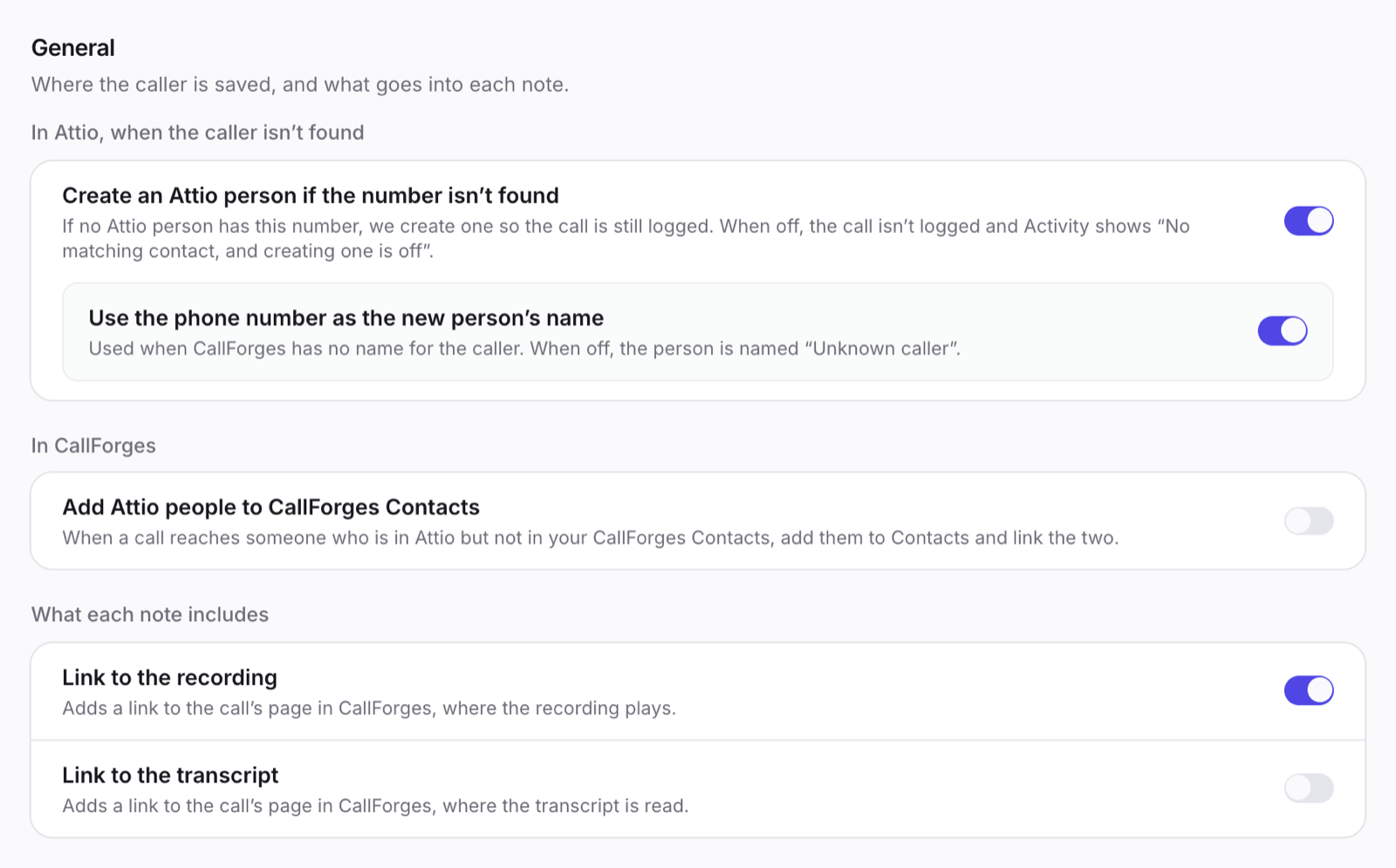
What each note includes
- Link to the recording adds a link to the call's page in CallForges, where the recording plays.
- Link to the transcript adds a link to the call's page in CallForges, where the transcript is read.
Recordings and transcripts stay in CallForges. They are not copied into Attio, and only signed-in users of your CallForges workspace can open the links.
Connected numbers
Leave Log calls on all numbers on to log calls on every number your workspace owns, including numbers bought later. Turn it off to pick the numbers to log. Calls on numbers that aren't picked are skipped.
When calls are logged
A call is written to Attio within a few minutes of ending, so the disposition and notes the user adds after the call are included. If the call is changed later, for example a new disposition, the note or Calls record is updated to match.
Unknown numbers
CallForges finds the Attio person by phone number. In Settings → General:
- Create an Attio person if the number isn't found: when no person in Attio has the number, CallForges creates one so the call is still logged. When this is off, the call isn't logged and Activity shows that the person wasn't found.
- Use the phone number as the new person's name: used when CallForges has no name for the caller. When this is off, the new person is named "Unknown caller". This applies only while creating people is on.
- Add Attio people to CallForges Contacts: when a call reaches someone who is in Attio but not in your CallForges Contacts, CallForges adds them to Contacts and links the two. Off by default.
Import contacts
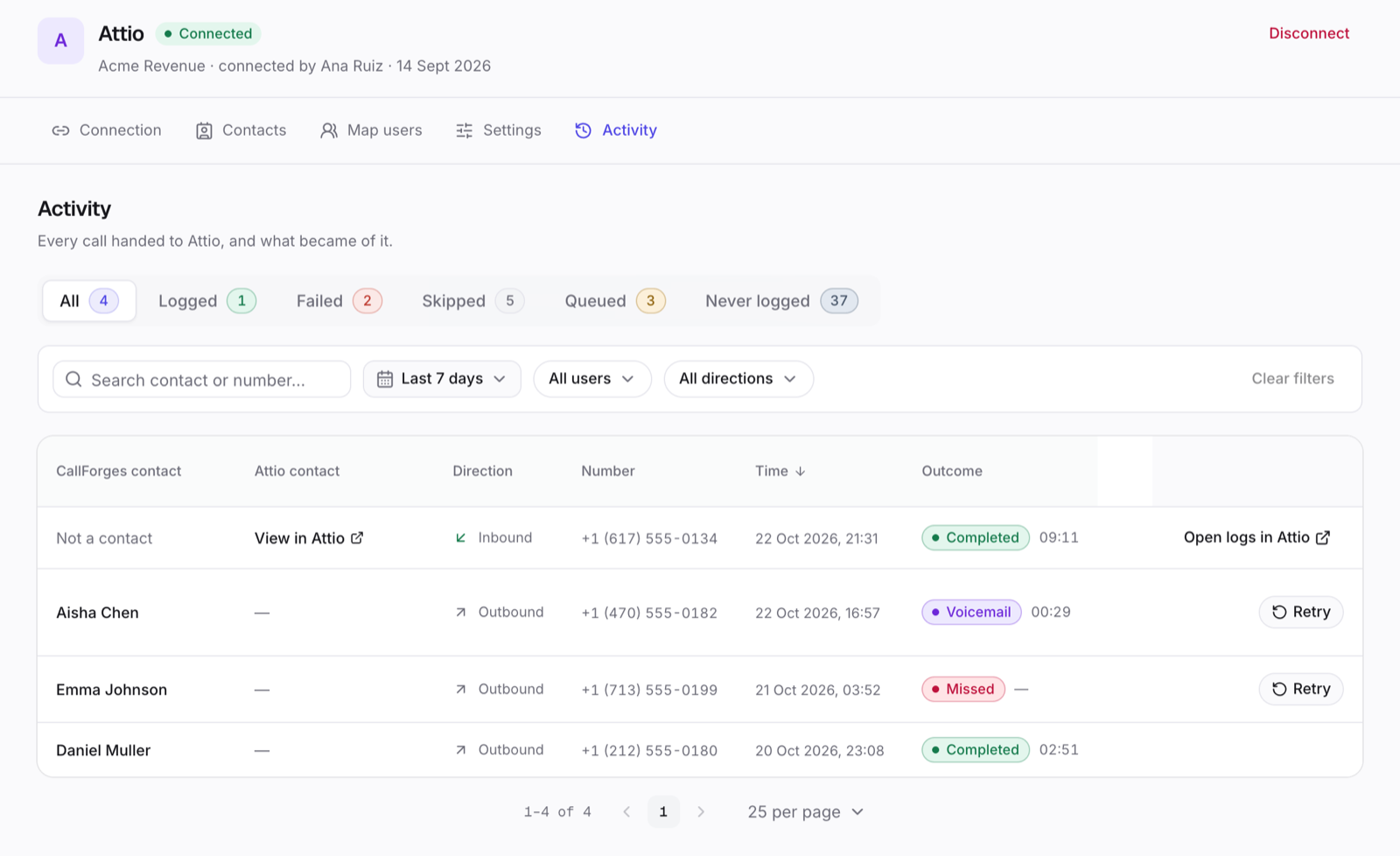
The Contacts tab lists the people in your Attio workspace who have a phone number, read live from Attio. Each row shows whether the person is already in CallForges, with a link to open them in Attio.
- Search, or filter by an Attio list with All lists.
- Select people, or import everyone in the chosen list.
- Click Import and choose an existing CallForges list or name a new one.
Imported people become CallForges contacts linked to their Attio records, ready to call from a campaign or the dialer. Click Sync now to bring in later changes. CallForges doesn't copy your Attio data on a schedule; it reads Attio only when you open the tab, import or sync.
Log past calls
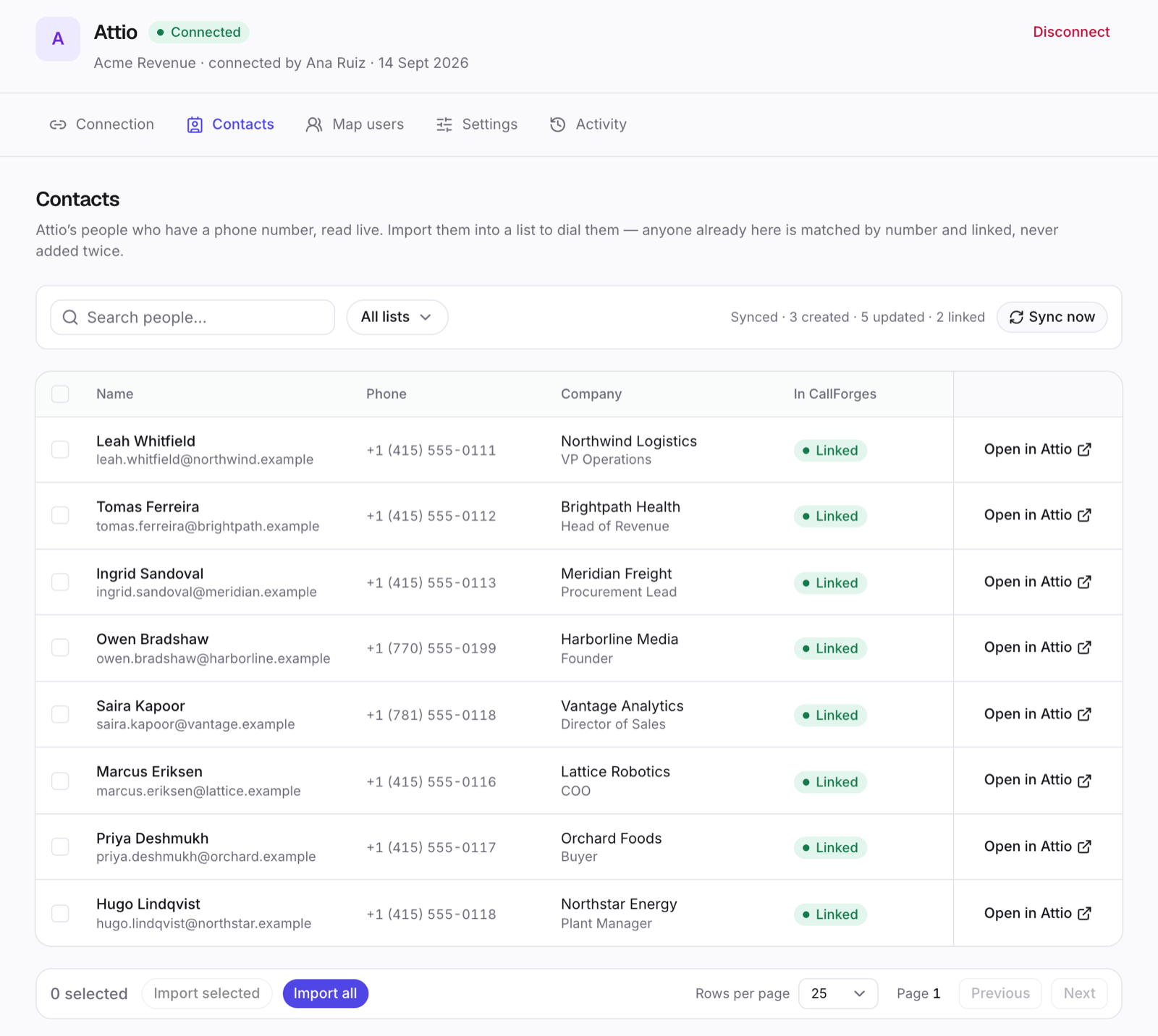
Connecting logs the calls that happen from then on. To send calls your workspace made before you connected, use Settings → Log past calls:
- Under How far back, pick a date range. It reaches back up to 1 year.
- Click Log past calls. CallForges counts the calls first and shows how many would be logged, and which users' calls would be skipped because they aren't mapped.
- Confirm. A progress bar shows the calls being sent.
Past calls are sent in the background and never delay the logging of new calls. To stop a run, open Activity, go to the Queued tab and click Stop queued.
Activity
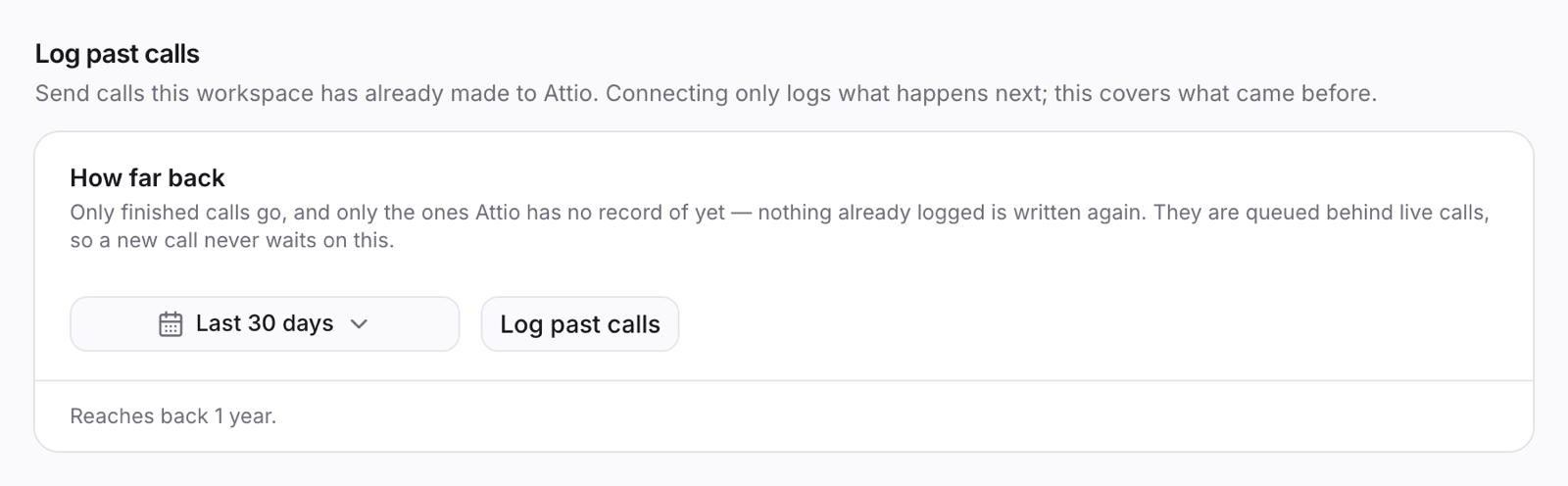
The Activity tab lists every call and what happened to it in Attio: logged (and whether as a note or a Calls record), queued, failed or skipped, with the reason. You can retry one call, or use Retry all for every failed or skipped call that matches your filters. Never logged lists calls that were never sent to Attio.
Disconnect
- Open Integrations → Attio.
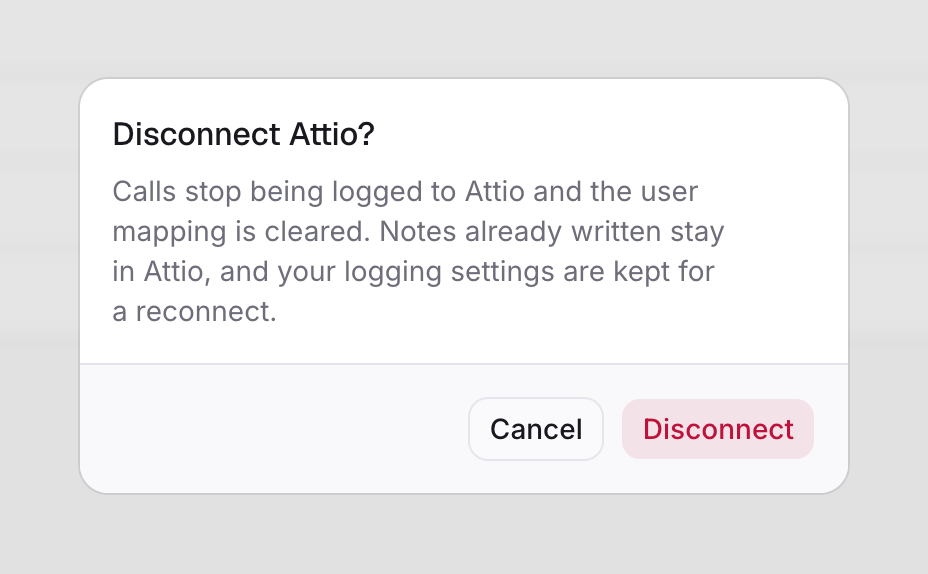
- Click Disconnect and confirm.
Calls stop being logged to Attio and the user mapping is cleared. CallForges gives up its access to your Attio workspace. Notes and Calls records already written stay in Attio, and your logging settings are kept in case you reconnect. You can also remove the CallForges app from your Attio workspace settings at any time; CallForges then shows Reconnect.
What CallForges can access
When you click Allow, CallForges asks Attio for these permissions on your workspace:
| Permission | Why |
|---|---|
record_permission:read-write | Find the person by phone number, create a person for an unknown number when you turn that on, and write Calls records. |
object_configuration:read-write | Read your objects and attributes, and create the Calls object when you choose Custom object. |
note:read-write | Write the call note, and replace it when the call changes. |
user_management:read | List workspace members for Map users and Auto-map by e-mail. |
list_configuration:read | Show your Attio lists in the Contacts tab's list filter. |
list_entry:read | Read who is in a list, to filter and import by list. |
Your Attio access is stored encrypted and used only for the features above. See our Privacy Policy.